


%20-%20Feature@2x.jpg)
Organize your numbers. See what's working. Act faster.
The more phone numbers you manage, the harder it gets to see how any one campaign, region, or team is actually performing. Tags fix that. Group your numbers however your business works, and get one clean view for each group.
How teams actually use Tags
Sales teams, tagged by region and agent. A sales manager tags numbers by territory, so each region's performance shows up on its own, without five others mixed in. The same team can tag by individual agent to surface coaching signals: answer rates and talk times show who has a strong opener and who needs attention.
Healthcare providers, tagging seasonal campaigns. A healthcare company tags numbers for open enrollment, a few compressed weeks where call volume spikes. Tagging that window keeps it isolated from year-round activity.
Delivery and logistics, tagging by loyalty program. A delivery company running a loyalty program tags those numbers specifically, separating that outreach from general customer service and any other campaign running in parallel.
Franchise brands, tagged by location. A fitness franchise tags numbers by individual location, so the franchisor can benchmark locations against each other. A regional lead visiting a few locations in a day can pull that comparison up on their phone between stops.
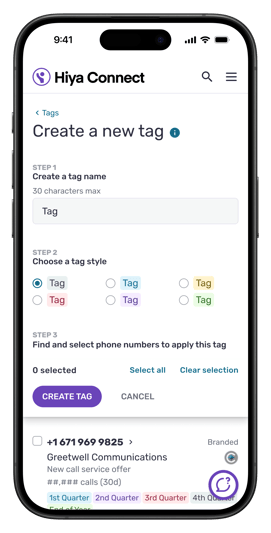
Setting up a Tag
Three steps, about two minutes:
- Create it. On mobile or desktop, go to Branded Call > Tags, select "Create new Tag," name it, and pick a color.
- Apply it. Select the relevant numbers, click "Add/Remove Tags," and apply to everything selected at once.
- Done. The Tag detail page starts aggregating data immediately.
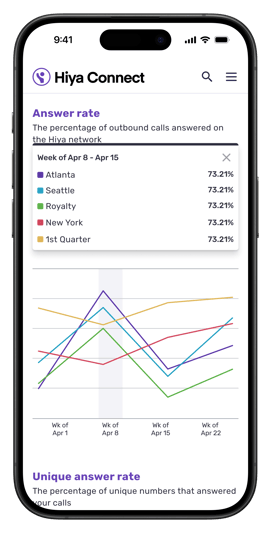
What's in the Tag analytics view
- Answer rate and unique answer rate
- Estimated call volume
- Recipient call-back rate
- Reputation data, including spam reports and blocked calls
- Adjustable date ranges
All of it lives in the Console, on mobile and desktop.
Start tagging your numbers
Tags turn a big list of phone numbers into something organized, in whatever way fits your business. Since a number can carry multiple Tags, the same numbers can be viewed by campaign, by region, or by whoever's asking, without setting up a second system. Build it once, and the view is there whenever you want it.
If you're already a customer, log into your Hiya Connect Console and set up your first Tag. For step-by-step instructions, visit the Tags section in the Hiya Connect Help Center.
Not branding your calls yet? Learn more about Hiya Branded Call.

%20-%20Feature@2x.jpg)